Meet partner Webhook Integrations
Last updated: February 26, 2026
Overview
GoodTime Meet webhooks let you set up and receive asynchronous notifications from your applications whenever changes to meetings scheduled in GoodTime are detected.
For example, you can configure an email sequence to stop sending when a meeting is scheduled on GoodTime.
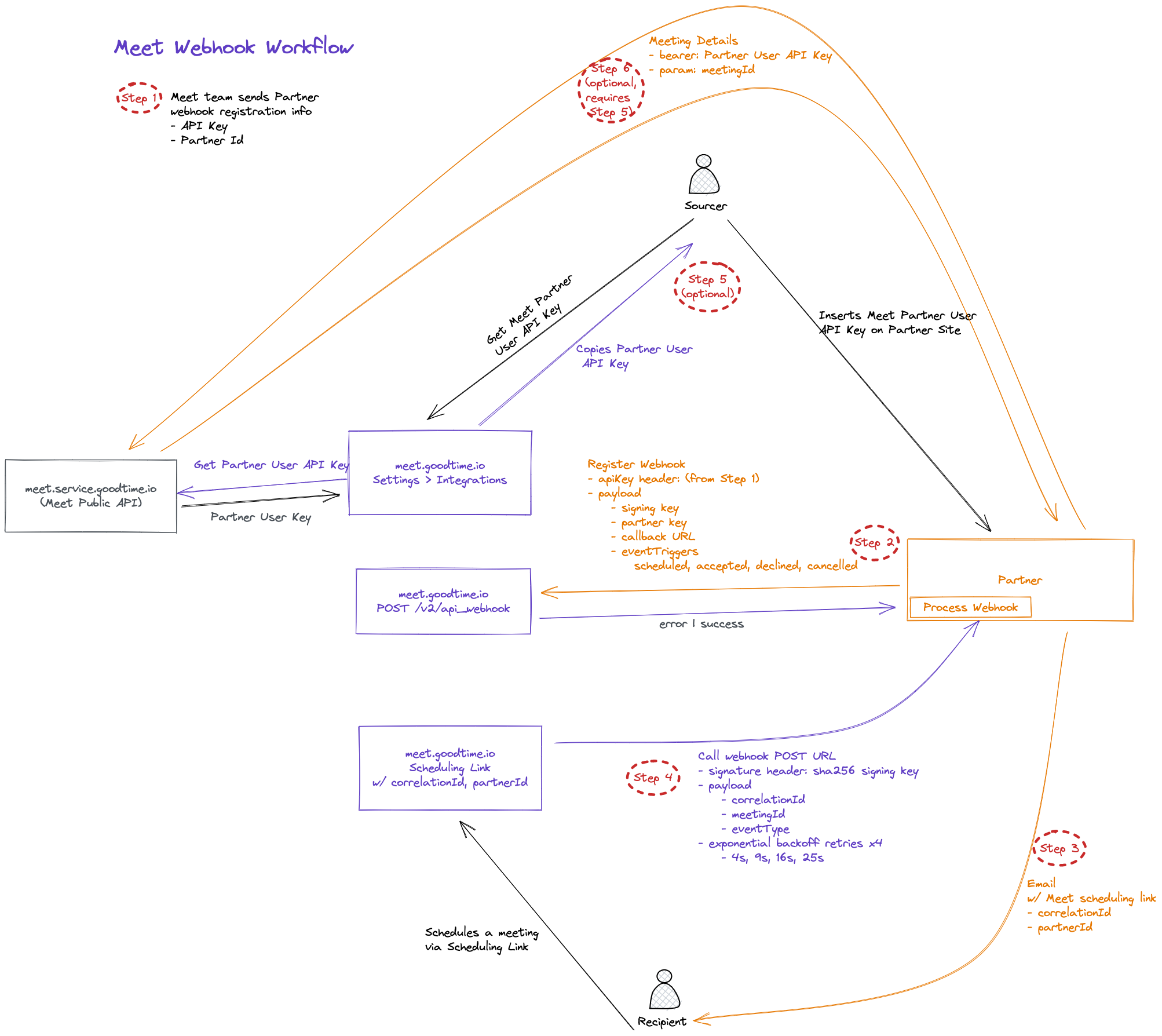
Webhook registration
Step 1
Meet team will send the Partner two pieces of necessary information via email.
- API Key: used in the POST request to register the desired webhook callback URL
- Partner Key/ID: publicly visible UUID to identify the partner, passed as part of Meet Scheduling Link
Step 2
Partner will register the desired callback webhook to use for Partner-integrated Meet Scheduling Links
- POST to https://meet.goodtime.io/v2/api_webhook (via insomnia, postman, curl, etc)
-
- header
- X-API-KEY: issued API Key
- JSON payload
- partnerKey: issued Partner UUID
- signingKey: used by Meet to call the Partner webhook with SHA256 “x-webhook-signature” request header
- callbackUrl: URL of the Partner webhook for Meet to POST a request when a matching eventTrigger is matched for a scheduling link
-
triggerEvents: JSON object of scheduling event names which trigger the Partner webhook call -
"SCHEDULED": true|false,"ACCEPTED": true|false,"DECLINED": true|false,"CANCELED": true|false -
httpVerb: HTTP verb of callbackUrl,
POSTrecommended
- header
-
Meet Scheduling Link Workflow
Step 3
Users on the Partner platform will paste in the Meet Scheduling Link into the Partner product.
- Link format:
https://meet.goodtime.io/w/{organization}/{username}/{linkTitle}
Partner platform will append querystring parameters to the Meet Scheduling Link to identify the partner and a correlation to the link
- partnerId: issued Partner UUID
- correlationId: unique identifier per link instance usage
Example: https://meet.goodtime.io/w/{organization}/{username}/{linkTitle}?correlationId={uniqueId}&partnerId={issuedPartnerId}
Step 4
Meet recognizes the partnerId in the meeting url
- Checks to see that “scheduled” is one of the interested eventTriggers
- Makes Partner webhook POST request
-
- signingKey: as a SHA256 “x-webhook-signature” request header
- JSON payload
- meetingId: newly scheduled meetingId
- correlationId: value passed in the link url
-
eventType:
SCHEDULED,ACCEPTED,DECLINED,CANCELED
-
- Meeting creation will record the correlationId and partnerId in the Meet database
- If future calendar events meet the triggerEvent
-
- Additional webhook POST requests are made
-
(Optional) Meeting Details Workflow
This part is optional and only required if the Partner is interested in the meeting details.
Step 5
- Partner user logs into Meet UI and visits to the
Settings>Integrationspage - Partner user requests the selected Partners API Key
- Partner user copies and pastes the Meet API Key on the Partner Website’s Meet integration section
Step 6
Partner requests for meeting details from the Meet Public API
- Request
/v1/meetings/{meetingId} - Bearer: header using the Partner user’s stored Meet API Key - Response (meeting details) - correlationId, title, description, status, startTime, endTime, timezone, meetingUrl, attendees