Salesforce Integration
Last updated: February 26, 2026
Overview
Integrating with Salesforce allows you to make our lead routing feature smarter by checking for existing contact/account/lead owners in Salesforce. If a customer reaches out to your organization for a meeting, instead of creating a new relationship with a member on your team, we can maintain consistency by routing to someone who is already familiar with the account.
💡 NOTE: This feature is only available for GoodTime Meet Enterprise Accounts. To become an enterprise account, contact our sales team: sales@goodtime.io
💡 NOTE: Currently, this feature only functions with organizations that are also integrated with Hubspot forms.
Setup
Permissions
This feature is only available for GoodTime Meet Enterprise Accounts. To become an enterprise account, contact our sales team: sales@goodtime.io
Within an Enterprise Account, this integration is only available to Company Admins.
- To verify that you are a company admin, navigate to https://meet.goodtime.io/settings/members. Find yourself on the list and verify your Role as Company Admin. If you are not a Company Admin, you can be added by another Company Admin. Filter by role to find out who to contact to be added.
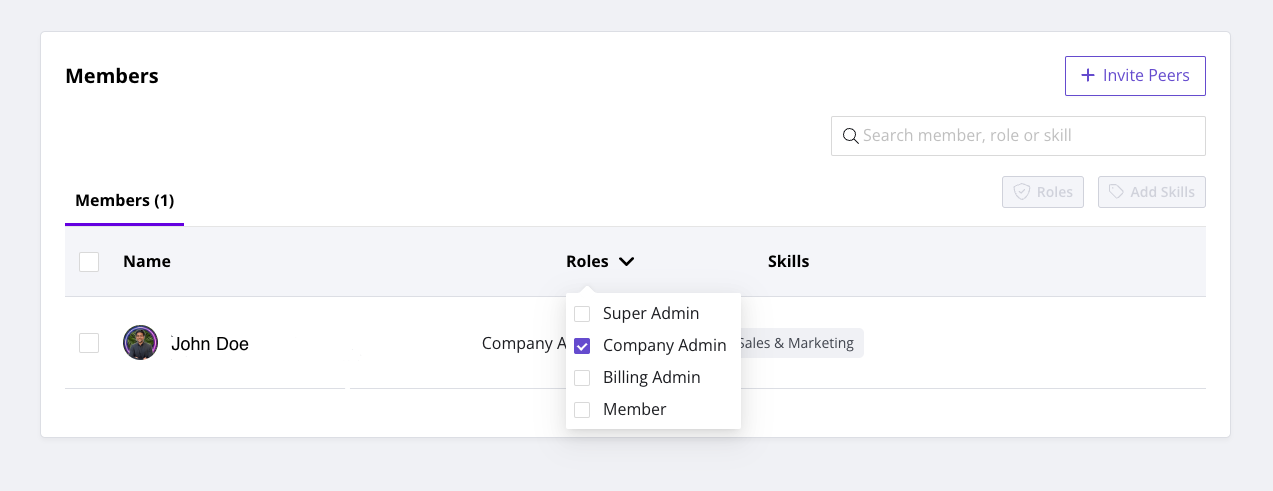
- If you cannot find any Company Admins, that means your company does not have an Enterprise Account. Contact sales@goodtime.io to upgrade your account.
Setting up a Connected App in Salesforce
Before you can integrate GoodTime Meet with Salesforce, you need to setup a Connected App in Salesforce with specific settings that allow Meet to connect.
- Login to Salesforce as an admin.
- If not already in Setup mode, navigate to the top right gear icon, and click Setup.
- In the global search box at the top of the page, type and select App Manager.
- Select New Connected App from the top right corner.
- Fill in the following three fields with whatever values makes sense for you:
- Connected App Name (something like “GoodTime Meet”)
- API Name (something like GoodTime_Meet)
- Contact Email (your email)
- Click Enable OAuth Settings and fill in the following fields:
- Callback URL: https://meet.goodtime.io/v2/lead_routing/salesforce
- Selected OAuth Scopes:
- Full Access (full)
- Perform requests at any time (refresh token, offline_access)
- Check Enable Client Credentials Flow
- The other default settings in this section are your choice to leave on or turn off. The defaults will work perfectly. Here is a sample setup:
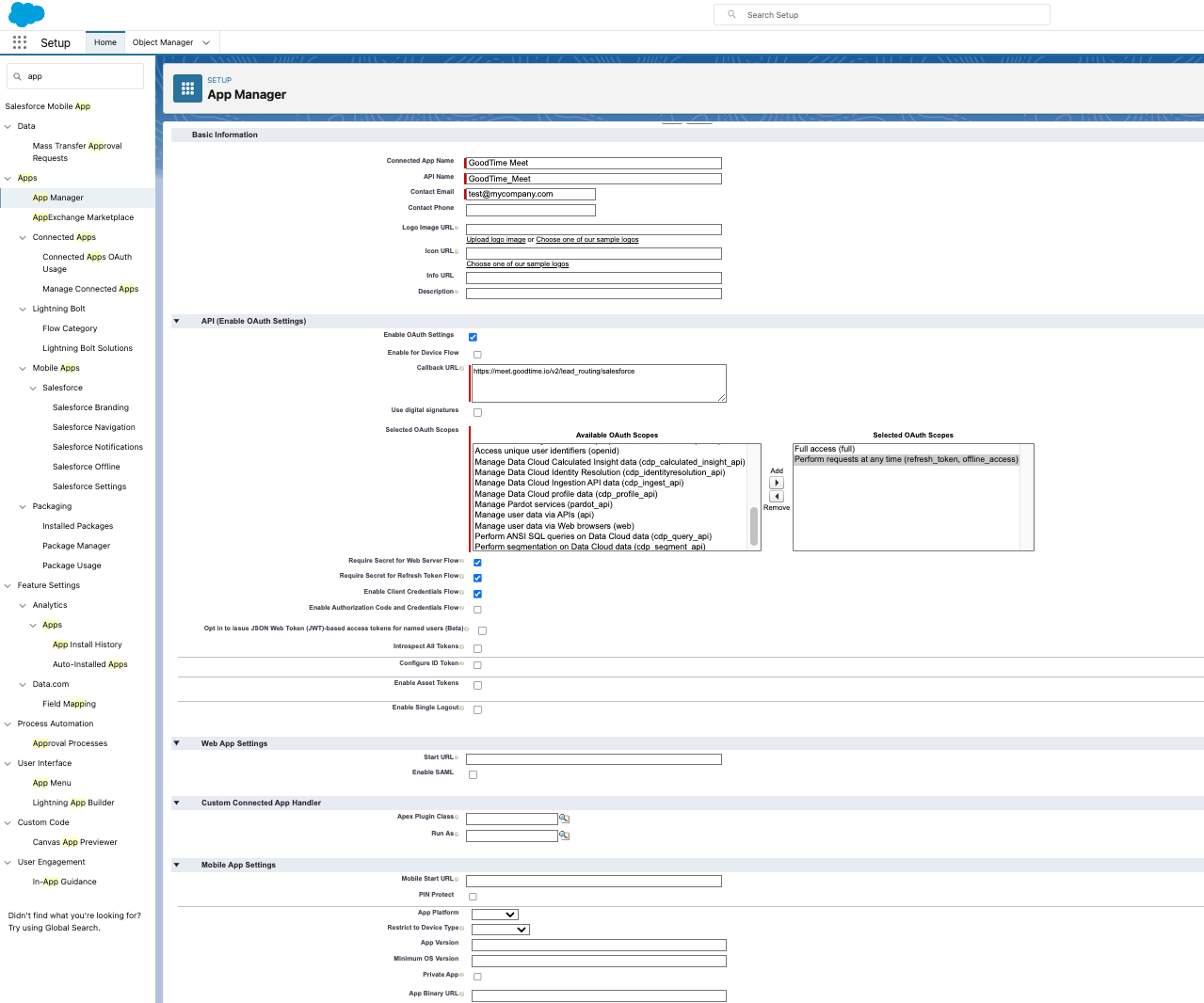
- 💡 NOTE: The Enable OAuth Settings are what make it possible for GoodTime Meet to read your salesforce data while you are not logged in, so that your end users can be routed to the right people automatically, no matter where you are. Read more info from Salesforce on setting up a Connected App here.
- Click Save and Continue. At this point Salesforce will work for a few minutes to create your Connected App, and this can take between 1-10 minutes.
- Now that your Connected App is created, obtain the Consumer Key and Secret by clicking on Manage Consumer Details, and follow the prompts for two factor authentication. Leave the browser open with the key and secret, to enter into Meet in the next step.
- In another tab, navigate to https://meet.goodtime.io/settings/companyIntegrations, and in the Salesforce box click Setup.
- Paste the Consumer Key and Secret into the boxes provided, and click Submit.
- You will need to wait 10 minutes before continuing, the Connect button on this screen will become enabled after 10 minutes.
- Click Connect.
- You will be re-routed to a Salesforce Authorization screen, where you will login with your Salesforce username and password (if not already logged in), and grant permissions to GoodTime Meet.
NOTE: If your Connected App wasn’t set up correctly, here is where you will get errors.
- If you get “invalid redirect mismatch” you need to double check in your salesforce Connected App that the Callback URL is https://meet.goodtime.io/v2/lead_routing/salesforce exactly. If you fix it, wait 10 minutes before trying again.
- You will be redirected back to the Meet Company Integrations page (where you started) and instead of a Connect button, you will see a Disconnect button. Disconnect only if you want to revoke GoodTime Meet permissions to route leads through Salesforce.
Connect a Route to Salesforce
- Navigate to https://meet.goodtime.io/links/routing
- Select the Create New Route button in the top right
- Select Import From Hubspot. If you are not already connected to Hubspot, follow the instructions to connect. Currently, the Salesforce Integration only works with forms that are integrated with Hubspot.
- After choosing a route name and a form, click Add Route Logic.
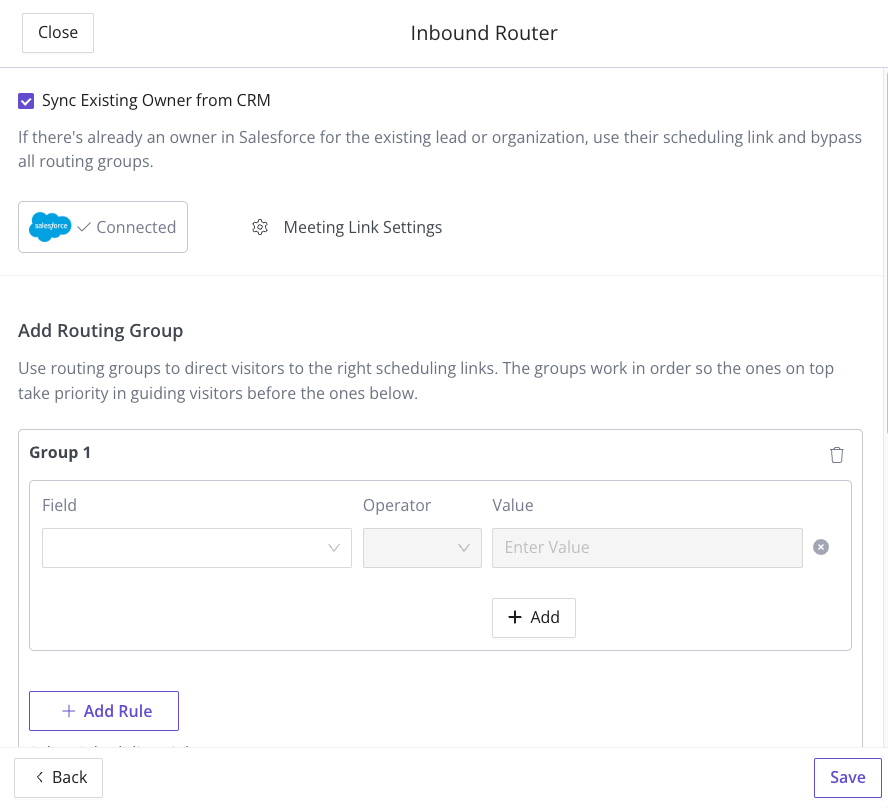
- Confirm that Salesforce is showing a Connected status, like in this screenshot, and click Sync Existing Owner From CRM. If not, you can connect an already created Connected App here. See the section above for how to make a Connected App in Salesforce.
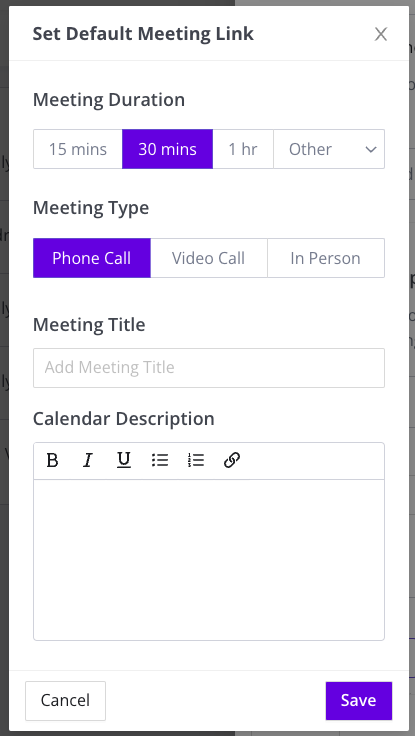
- As needed, click Meeting Link Settings to add Meeting Link Settings. These will be used to create on-the-fly scheduling links for any user who matches the data in an incoming form.
- Meeting Duration: Choose the duration of the meeting.
- Meeting Type: Choose the type.
- Meeting Title: Choose the title that will appear in the calendar event.
- Calendar Description: Choose any text that will appear in the calendar event.
- Fill out the rest of the logic as needed, ad scheduling links, and Save.
Happy Routing!
💜 If this didn’t answer all of your questions, or you just need help setting this up, please reach out to us at meet-team@goodtime.io.