🙌 Meet Teams Overview
Last updated: February 26, 2026
Overview
Teams is the hub for remote and hybrid organizations to allow for frictionless collaboration in today’s modern workplace.
Using Teams, you and your teammates can quickly find time to instantly meet with each other or seamlessly collaborate with teammates from other companies.
Features
Quick Meetings and Huddles
Find time when your team is free to meet next without having to play calendar tetris or if you want to just jump in on a quick huddle, one click create a video meeting that your teammates are invited to automatically.
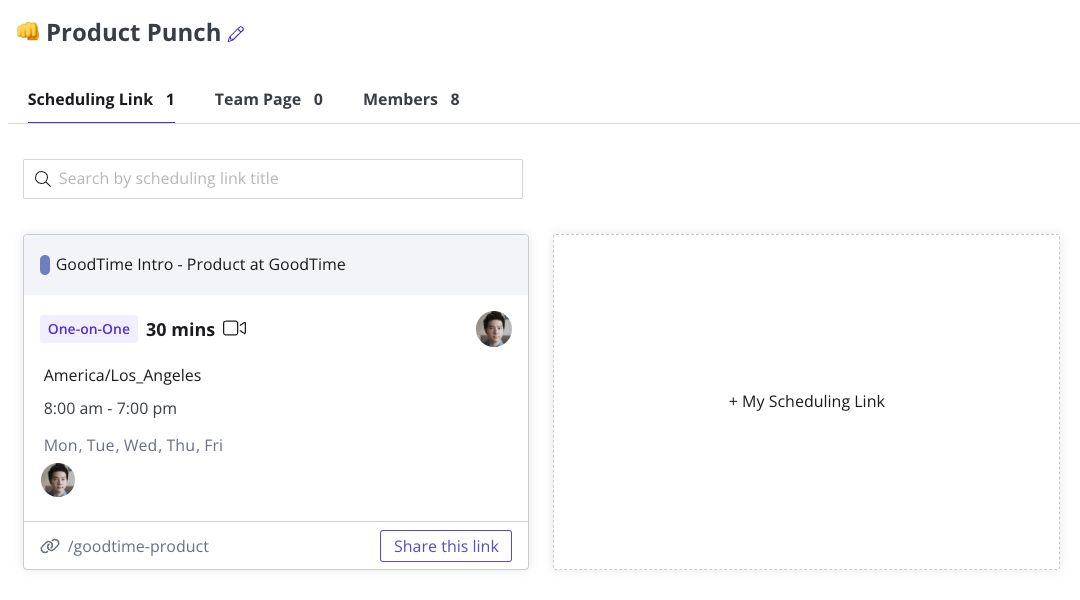
Link Sharing
Quickly share your scheduling links with your teammates
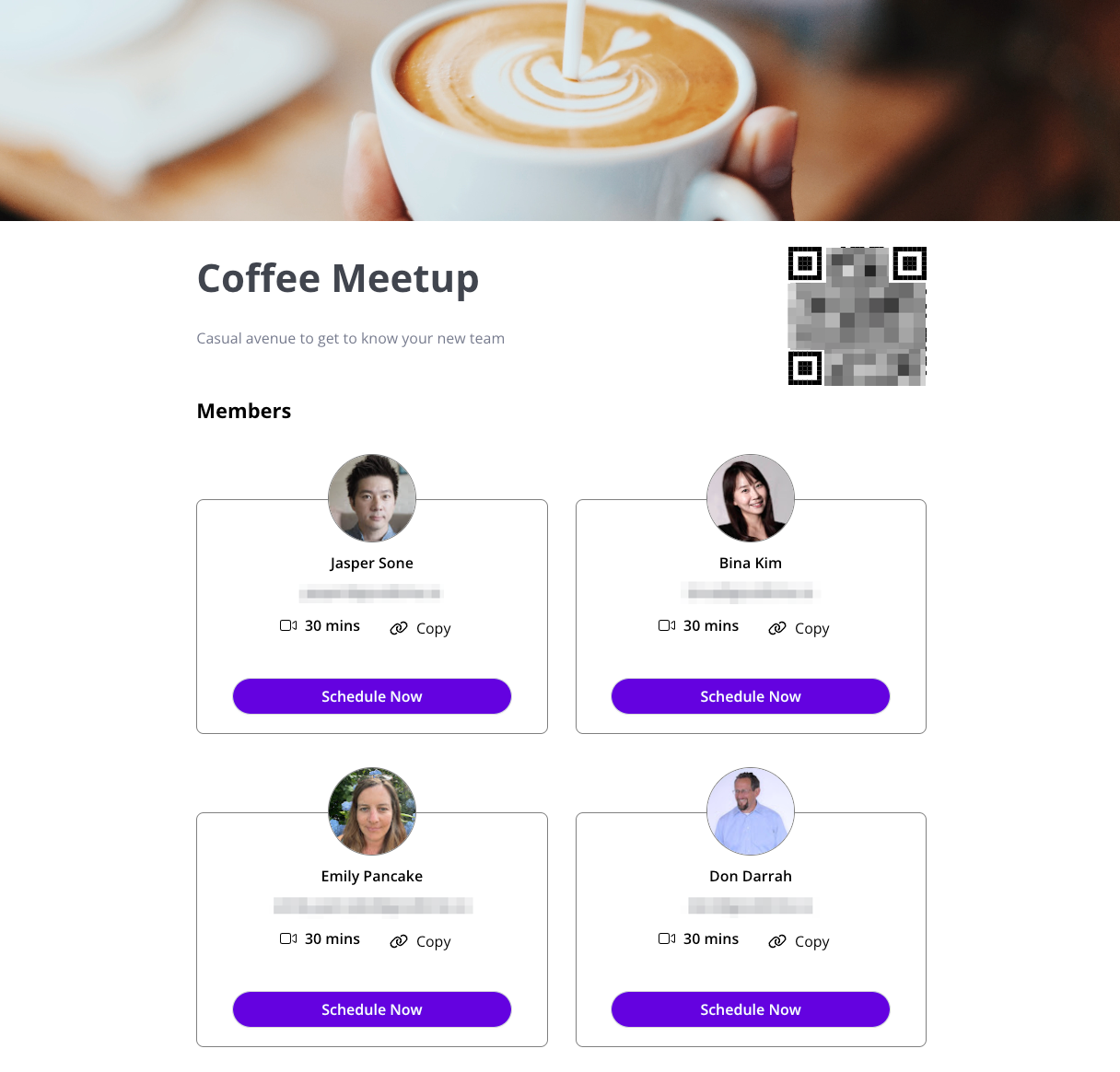
Team Pages
Create beautiful scheduling web pages for your team without writing a single line of code
Team Page Setup
1. Create a Team
2. Add the team members you’d like to show up on the page
3. After adding team members, click on the Team Pages tab

4. Click on the `Create Team Page` to make a new team page
5. You can customize the photo, title of the event, add a description, and add teammates you’d like displayed. Each scheduling link will be a default scheduling link. If you’d like to customize the link, press the `Gear` icon next to `Members`

6. After you’d done customizing the page at the top, make sure to toggle on the `Publish` option and press `Save` to make the page public for your guests to visit on the web.
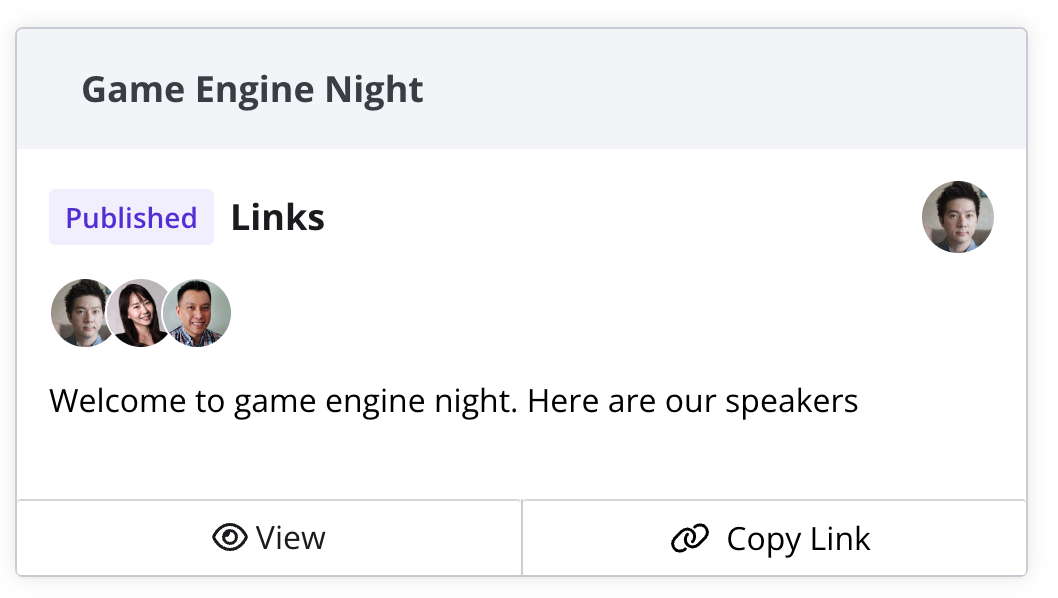
7. You can copy the unique link generated for the page one the `Team Pages` tab. Just click the `Copy Link` button at the bottom of a team page card and you’re ready to share it with the world.
Link Sharing
Invite people outside of your company to virtually share their availability with your team so you can book meetings instantly with them as well as add them to your scheduling links (and the other way around).
To invite guests from outside of your organization
1. Select the team you want to add them
2. Press the `Add Team Members` button in the top right corner
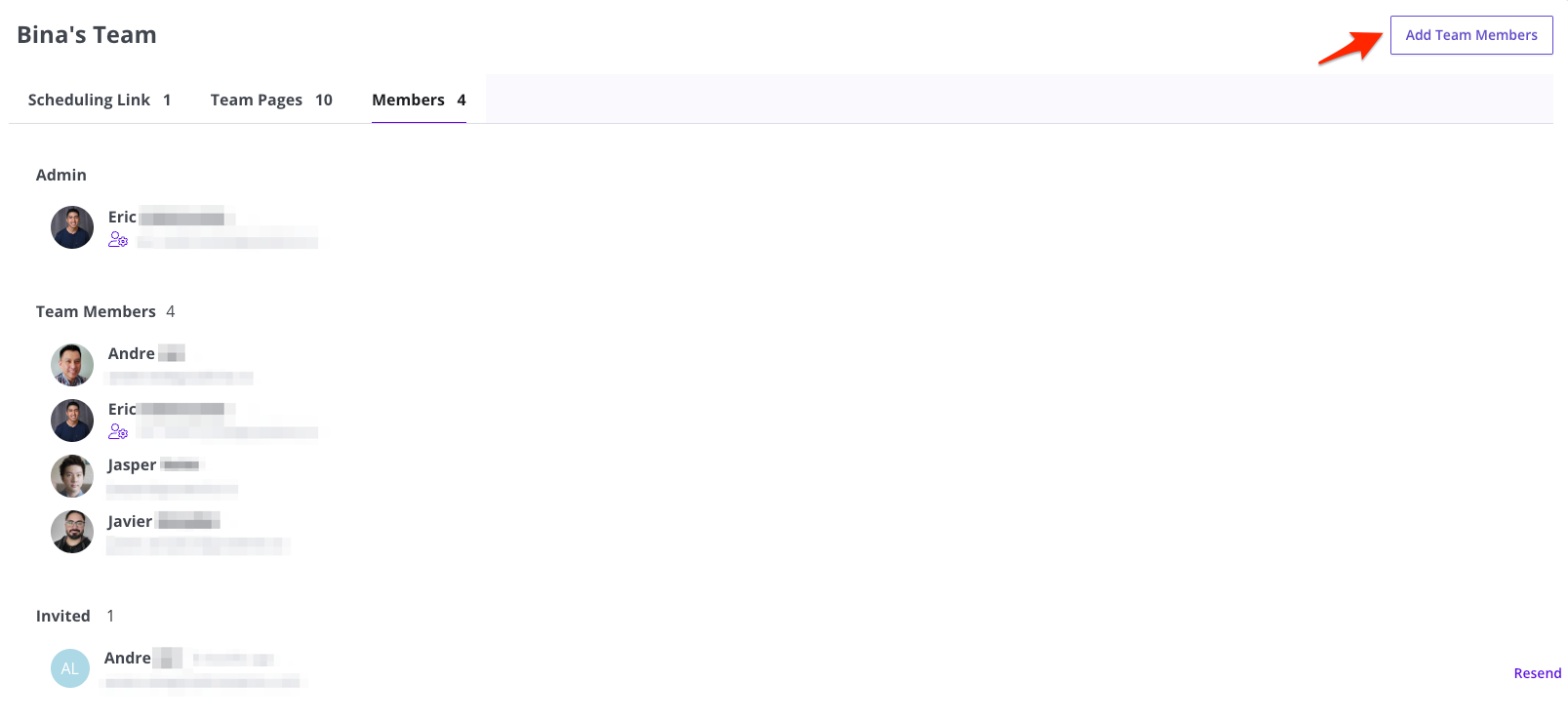
3. Type in the email address of the guest teammate you want to invite to share calendars with you (We currently support Corporate Email addresses, Gmail, and Outlook/Hotmail based email addresses)
4. The invited guest teammate will receive an email from you inviting you to your team
5. Once they accept the invite, their user account will show up inside of your calendar as well as scheduling links as an attendee. The best part is now their calendar is also synchronized in to share real time availability.
Known Limitation: In order to use virtual teammates, the virtual teammate must sign up for a GoodTime Meet account.