Why is my availability wrong?
Last updated: February 27, 2026
Overview
At GoodTime, we know the importance of real-time availability. If you ever feel you've experienced a bug where your availability is wrong, do not hesitate to reach out to us at meet@goodtime.io. Below are some of the most common reasons why availability is not matching up to expectations
All-Day Events
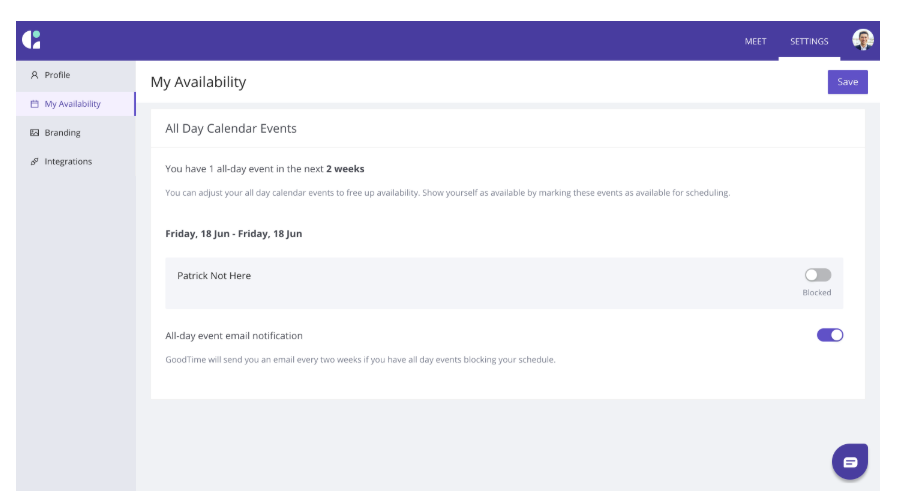
All day events will block your availability, even if they are marked as 'free'. If you have an all day event blocking your availability, you will receive an email indicating your availability is limited. You can mark all day events that should not be blocking your availability as 'free' inside Settings > Availability
If the event should not be blocking your availability, click the toggle 'Blocked' to toggle it off and then save:
I’m OOO or PTO but People Can Still Schedule on My Calendar
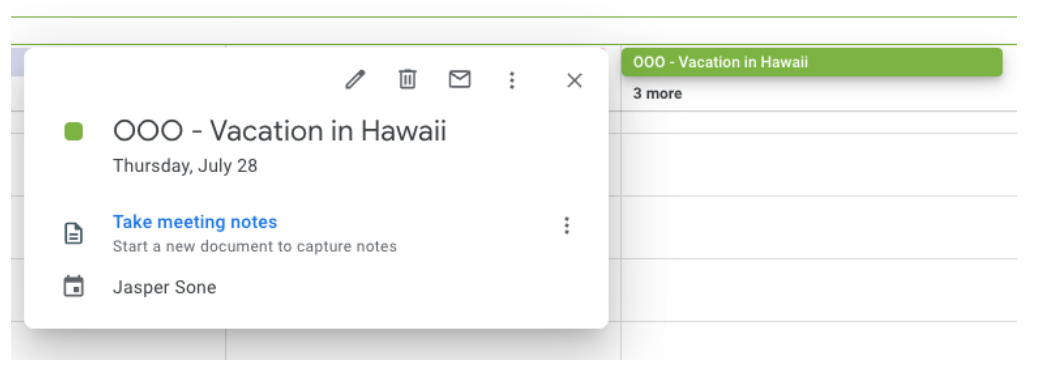
Your calendar may allow you to create PTO and OOO events without inviting yourself as an attendee. In this case, GoodTime Meet will ignore those events as it does not see you as an attendee. If you would like to be blocked for day and prevent people from scheduling on your links, add yourself as an attendee.
Below is an example of a Holiday event create in Google calendar where I have not been added as an attendee. This calendar event would not block my availability.
Meeting Buffers
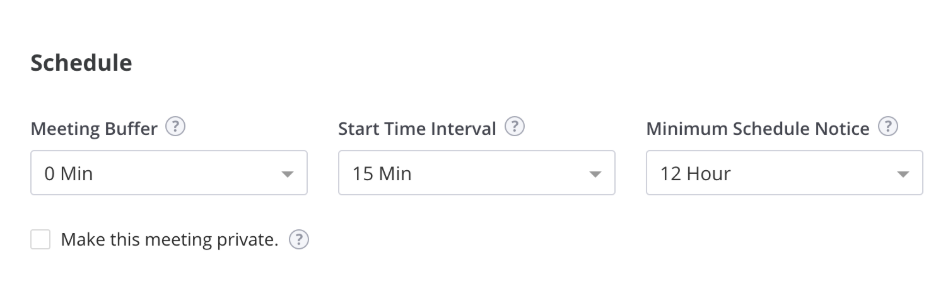
Meeting buffers are great to not be put in back to back meetings, but it can severely limit the availability you give to guests. If you find your availability is limited, we recommend reducing buffers to 0 minutes. You can adjust this setting inside each scheduling link and scrolling all the way to the bottom and adjusting the Meeting Buffer drop-down:
Scheduling Link Availability is different than Business Hours
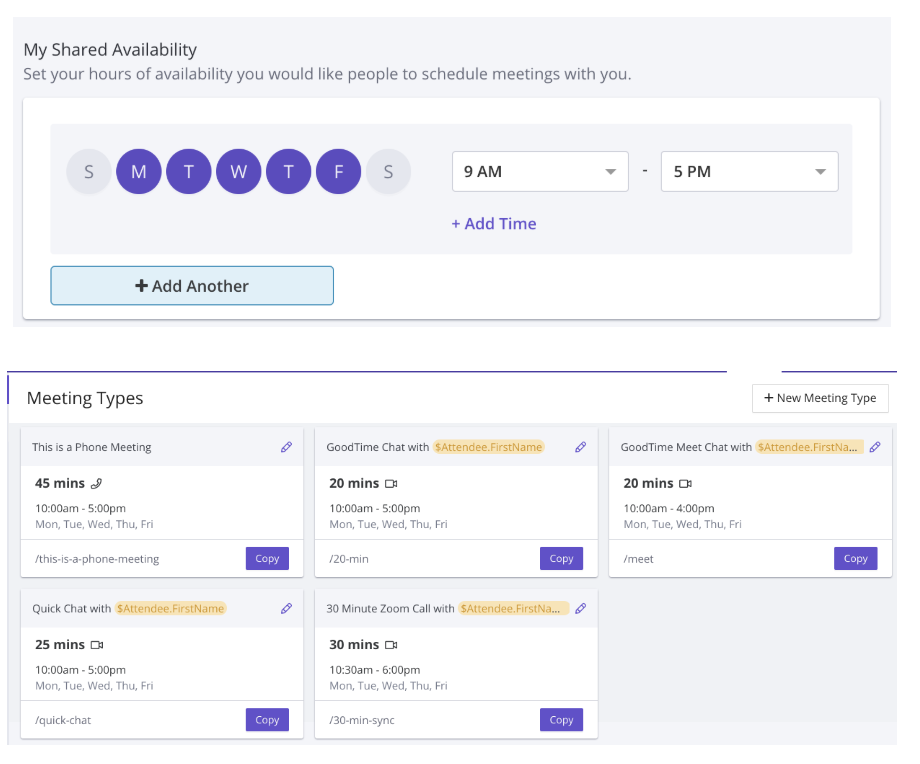
Each of your scheduling links has its own availability that you can adjust for your guests. If you modify your business hours in the settings page, it will not change the availability in your scheduling links. You must modify the availability for each of your links. You can see the availability you are sending to your guests inside the scheduling link (half way down called My Shared Availability) and can also see the availability preferences of each link inside the scheduling link dashboard page:
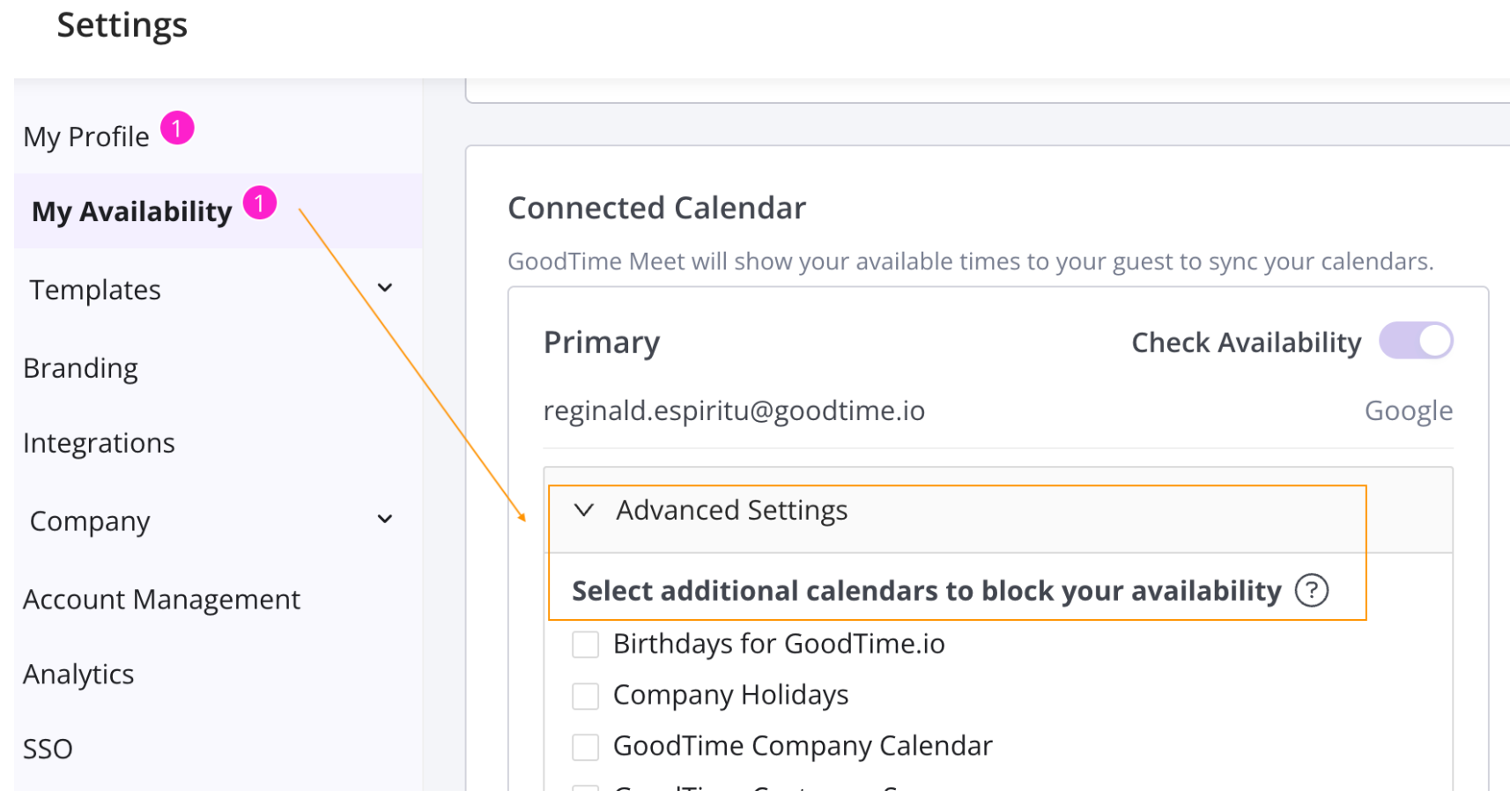
Check the Additional Calendars under Advanced Settings
Accidentally selecting a calendar with many events (such as public or company-wide calendars) may affect your availability.