🎥 Video Integrations
Last updated: February 26, 2026
Integrating with Zoom
Integration GoodTime Meet with Zoom is a breeze. There are two ways to connect to Zoom:
- Zoom Individual Connection - Connect using your Zoom user account (available in all packages). This will enable Zoom for just your Meet account.
- Zoom Enterprise Connection - Connect using the Zoom Company Admin account (available for Enterprise customers). This will enable Zoom for your entire organization without each individual having to log in separately.
Zoom Individual Connection Guide
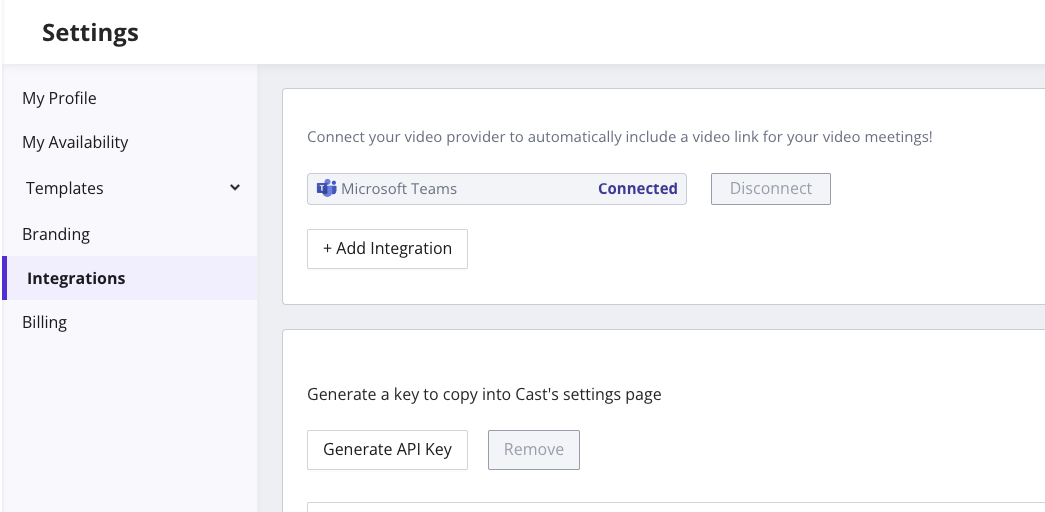
- After logging into Meet, go to Settings > Integrations
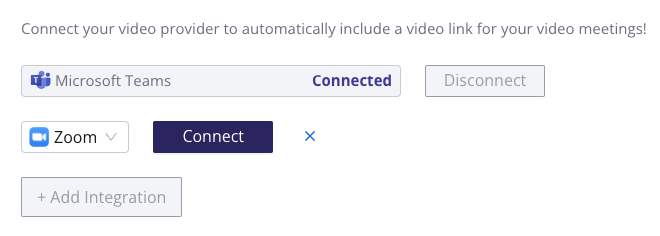
- Tap the "+ Add Integration" in the Video Integrations Section
- Click the purple connect button, and then authorize GoodTime + Zoom to be integrated.
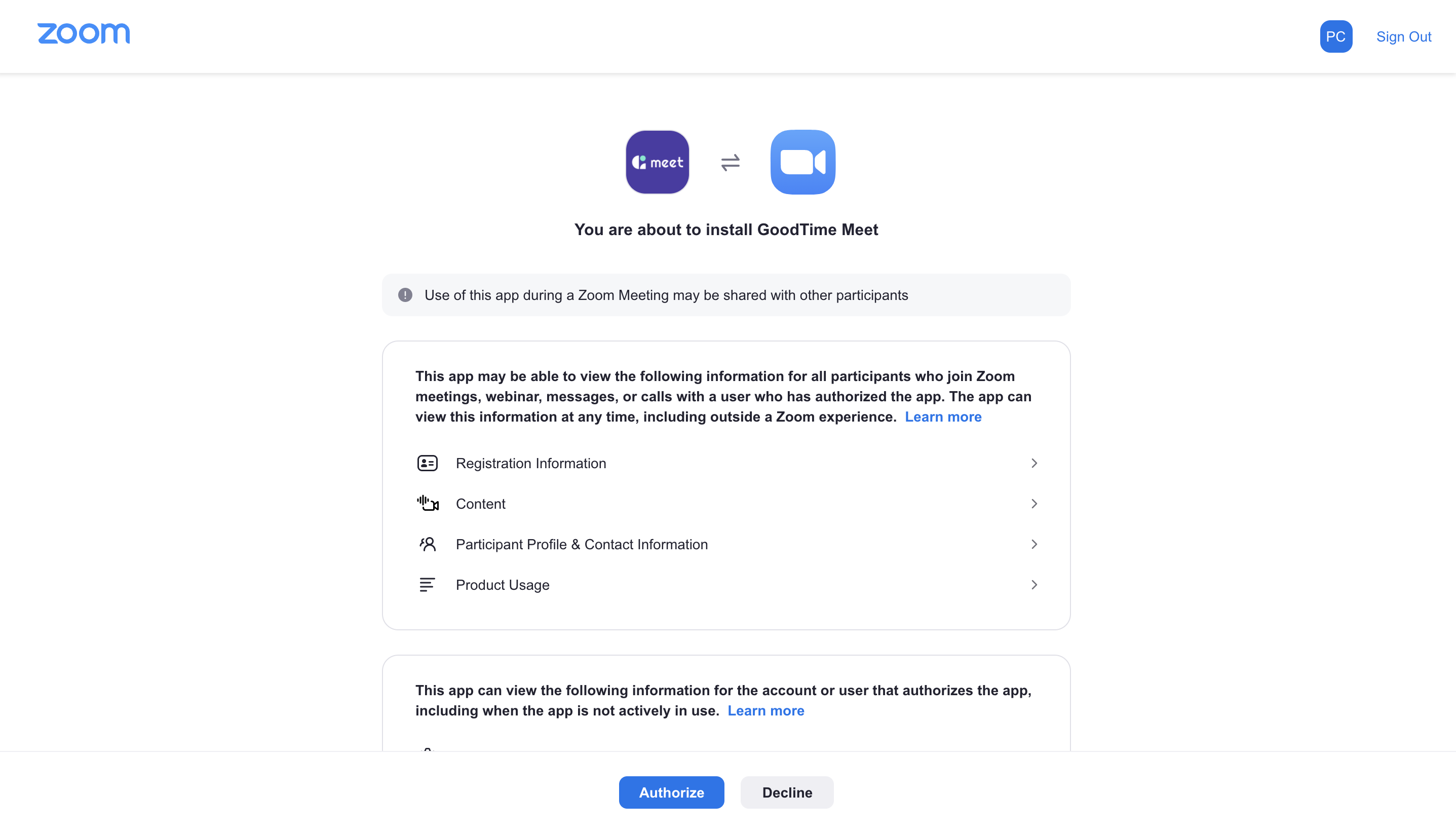
- Follow the instructions on Zoom’s website to complete the integration
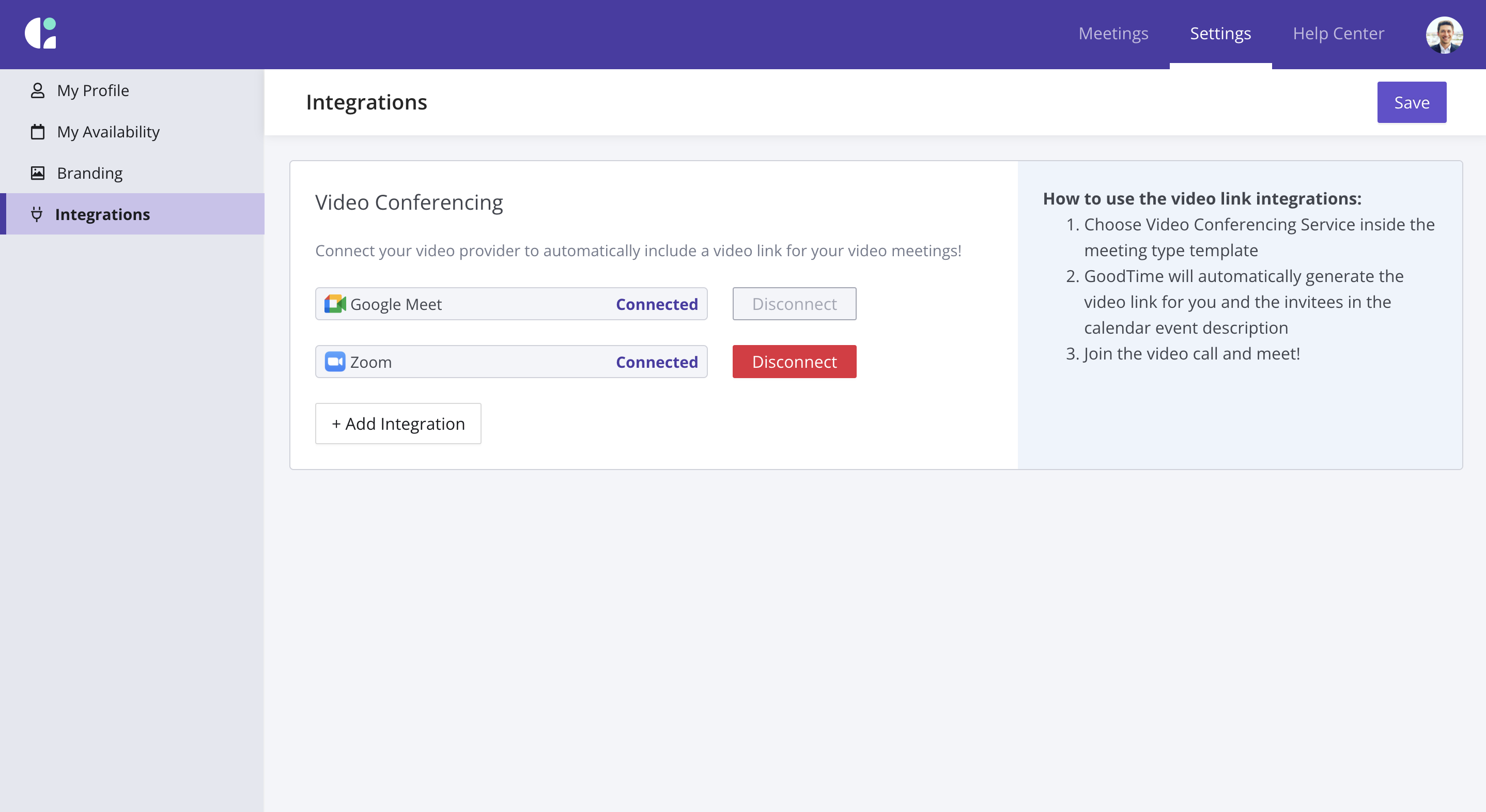
After this, you are all set and are able to create and share scheduling links that contain a Zoom Meeting. The button next to Zoom should say disconnect now instead of connect.
What if I get a Permission Error from Zoom?
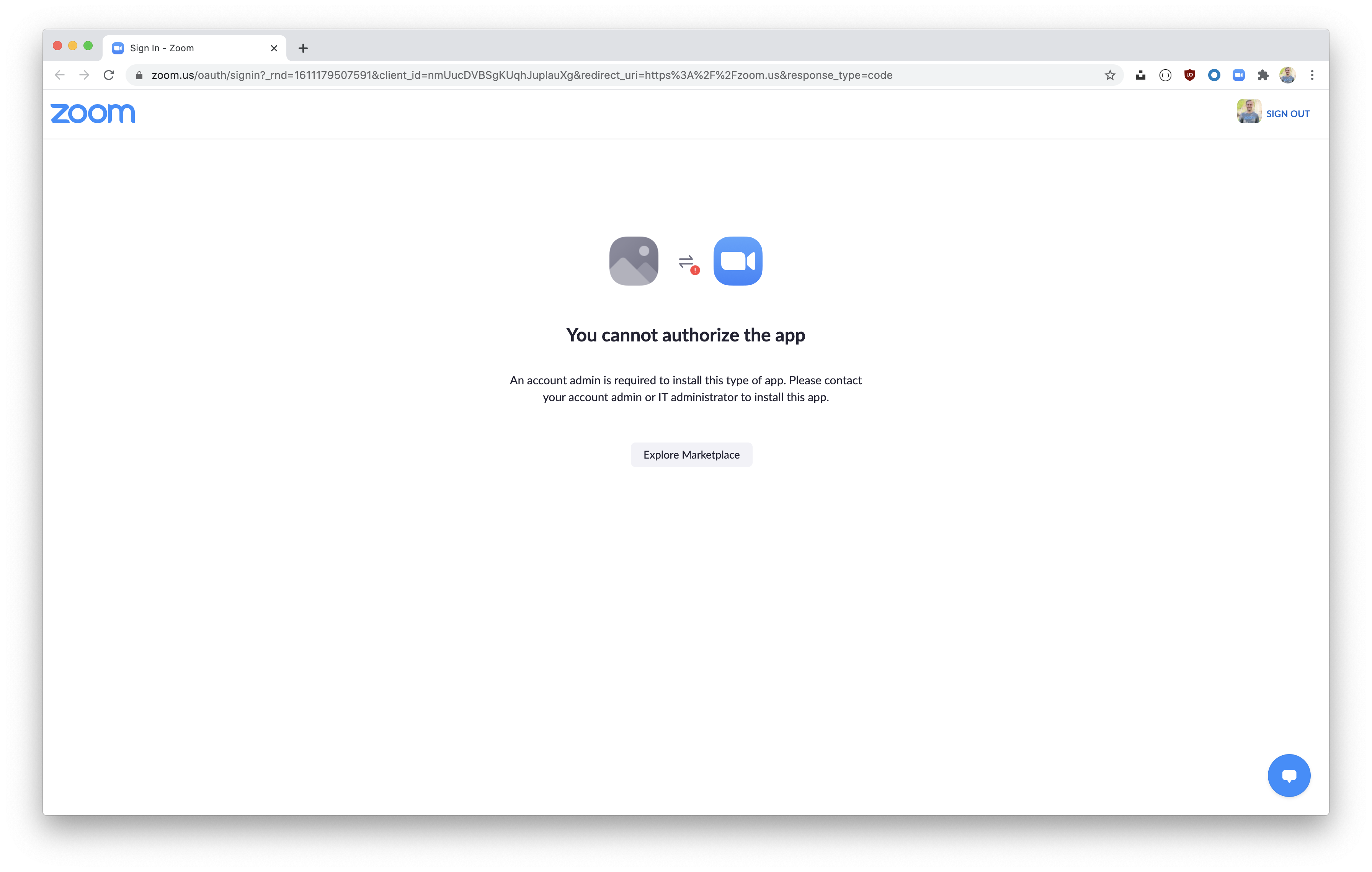
Some organizations will require your Zoom administrator to approve integrating with GoodTime Meet. You can submit a request to them, along with the following a few links that can help them if they haven’t done this before.
- Zoom Support - Potential scenarios that cause “You cannot authorize” errors (https://devsupport.zoom.us/hc/en-us/articles/360059617312--You-cannot-authorize-the-app-error)
- Zoom Support - General documentation on approving Marketplace Apps (https://support.zoom.us/hc/en-us/articles/360027829671-Pre-approving-and-approving-apps-in-Zoom-App-Marketplace)
- GoodTime Meet Marketplace App Listing - Zoom Admins can go here to approve the integration. (https://marketplace.zoom.us/apps/JII61idoSu-O9nWqfIeL5Q)
Zoom Enterprise Connection Guide
Your company can also opt to connect Zoom at the Organization Level. This will enable all users at your organization with a Zoom account to integrate without individuals having to connect themselves. The following steps must be completed by a Zoom Account Admin that has access to enabling third party integrations. The Zoom Account Admin must also have a GoodTime Meet Enterprise Account.
Zoom Individual Connection Guide
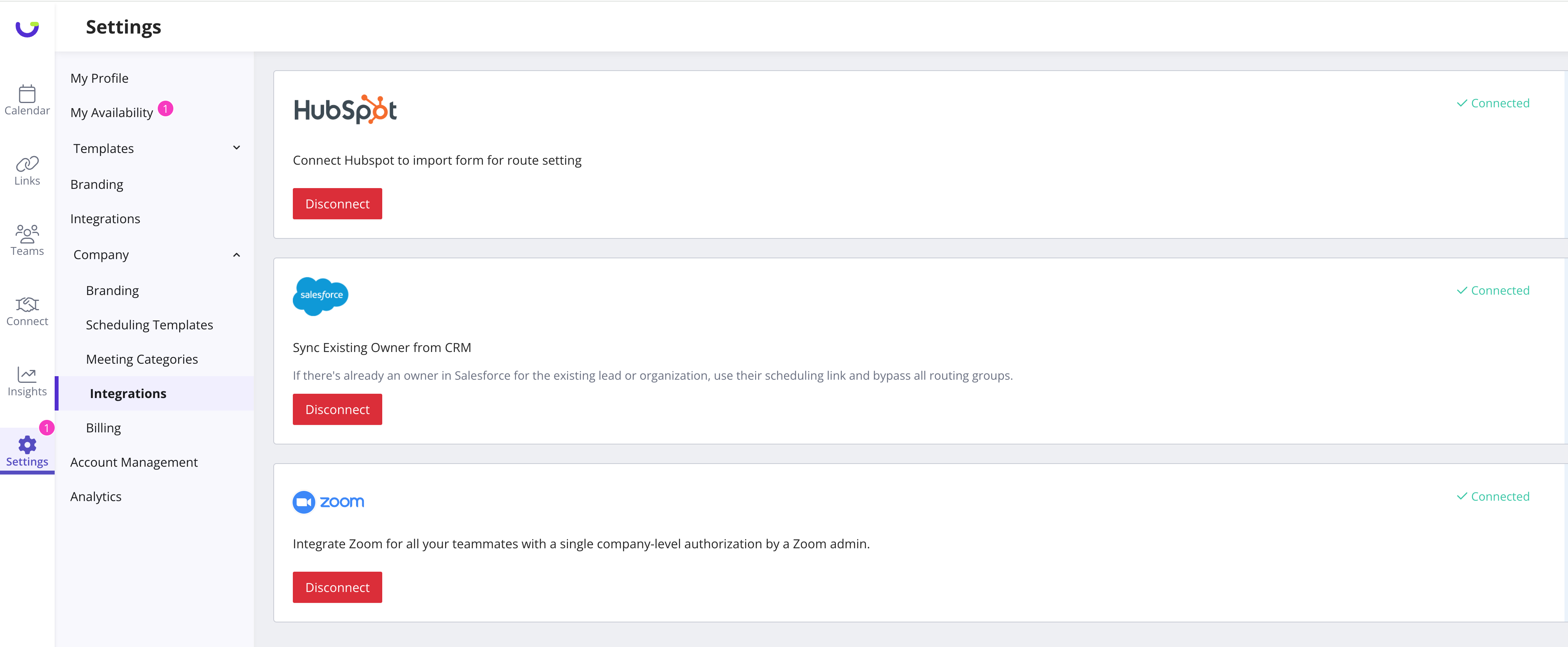
- Navigate to Settings > Company > Integrations > and scroll down to the Zoom section
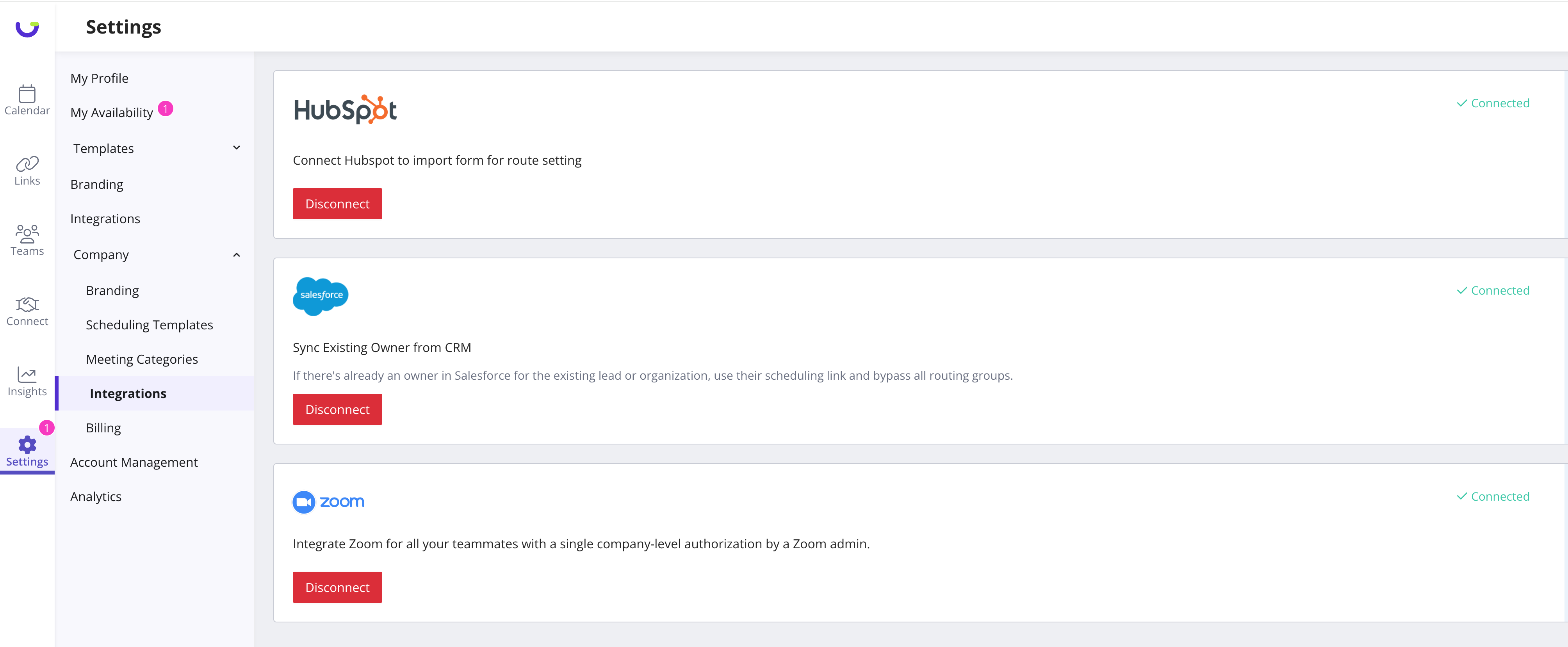
- Press the
Connectbutton and follow instructions after navigating to Zoom’s integration site to enable the connection. To connect, press theallowbutton.-
NOTE: If there is no
Connectbutton, and you see aDisconnectbutton instead, it means the integration is already in place.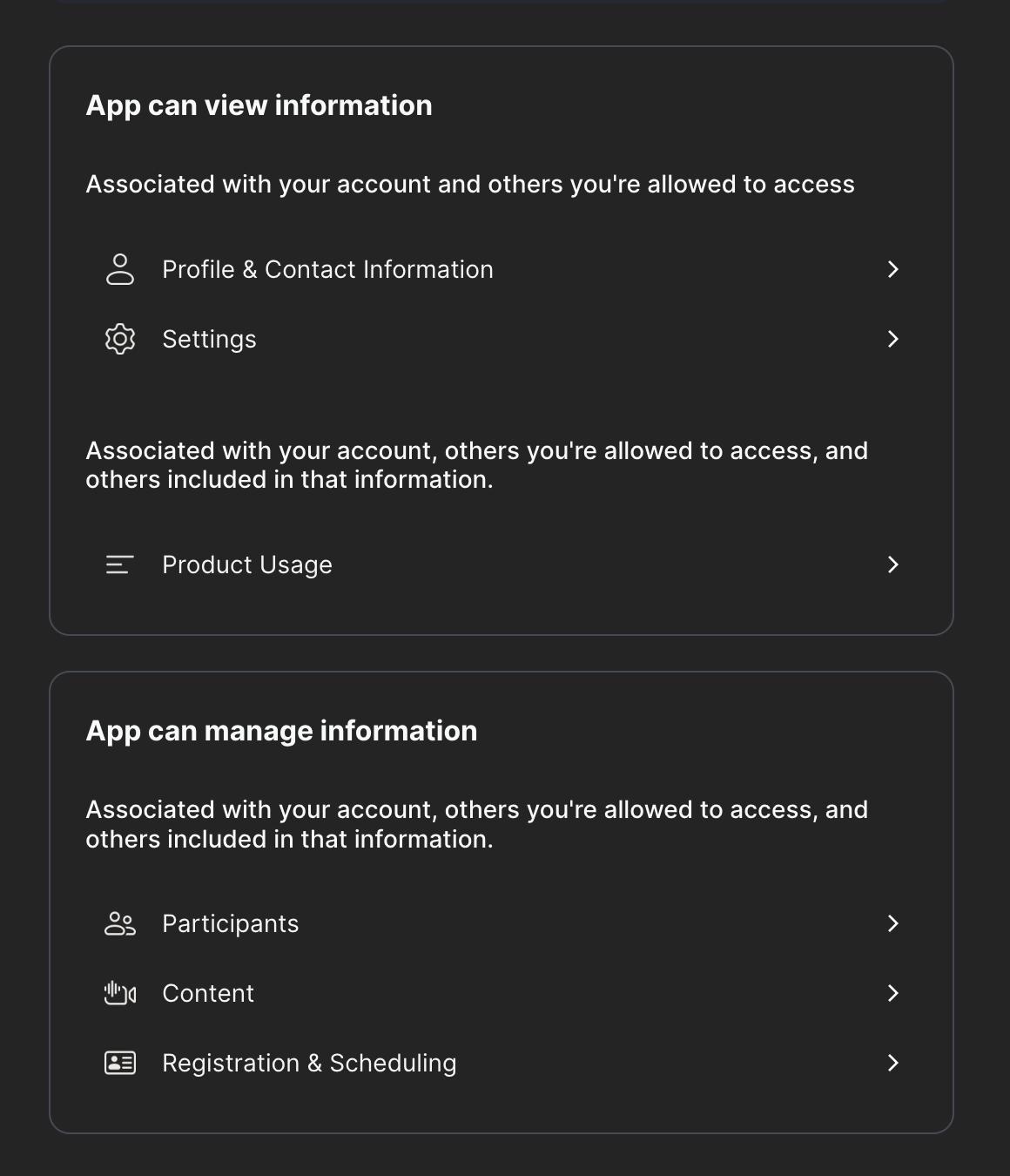
-
NOTE: If there is no
For more information about our Zoom Enterprise Integration, you can visit the GoodTime Meet Enterprise App on Zoom: https://marketplace.zoom.us/apps/l3tLQb6hSESoPlp_Jmh5Iw
Requested Permissions Details
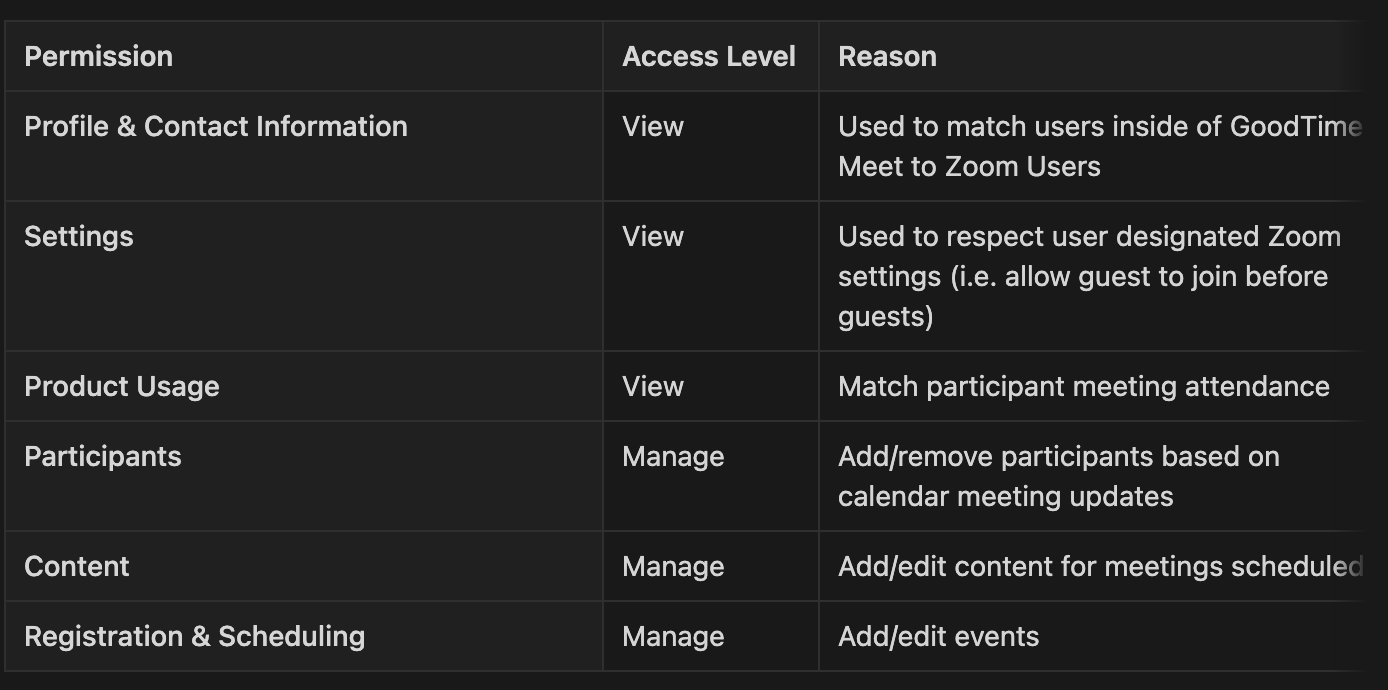
Testing the Zoom Connection
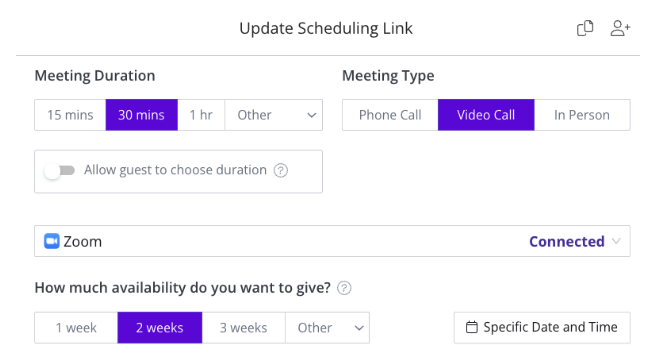
- To test the connection, go to your Links page, create a new Link by clicking on the "New Scheduling Link" button, and create a video call link with Zoom selected:
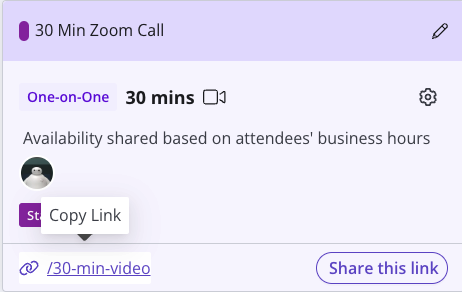
- Copy the created link and access it from the browser.
- Go through the booking process:

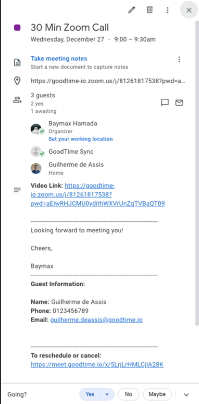
- In the end, you will have created a meeting in your calendar with a Zoom link attached to it:
Testing the Zoom Connection
Integration
Remove (deauthorize) the Zoom Connection
To remove (deauthorize) the Zoom Connection, the Zoom Account Admin need to navigate to Settings > Company > Integrations > scroll down to the Zoom section, and click on “Disconnect”.
Integrating with Google Meet
If you are a Google user, by default Meet video integrations is connected.
Integrating with Microsoft Teams Video
If you are a Microsoft user, by default Teams video integrations is connected.