My links show no availability.
Last updated: February 27, 2026
Overview
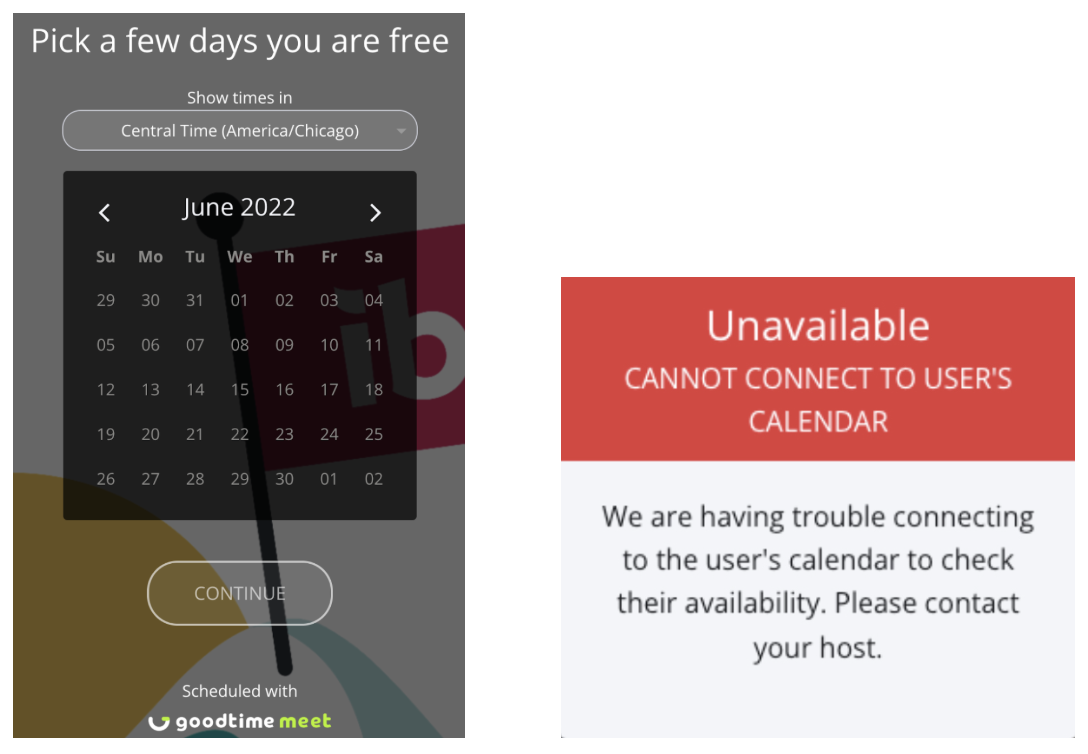
This document helps walk you through some troubleshooting steps to resolve the issue of one or more of your scheduling links not show availability. If your scheduling links are showing no availability, your calendar will appear blank, with no days highlighted (see example image).
Common Reasons
Google Permissions
Google requires additional permission to be able to schedule meetings on your calendar. To grant access, follow these steps:
Log out of GoodTime Meet
Log back into GoodTime Meet at: meet.goodtime.io/login
When prompted by Google, make sure to check “Select all” box to give GoodTime permissions to keep your calendars synchronized and schedule (see screenshot and check all boxes)
Press Continue to log in.
Test out a scheduling link to see if this has resolved the issue
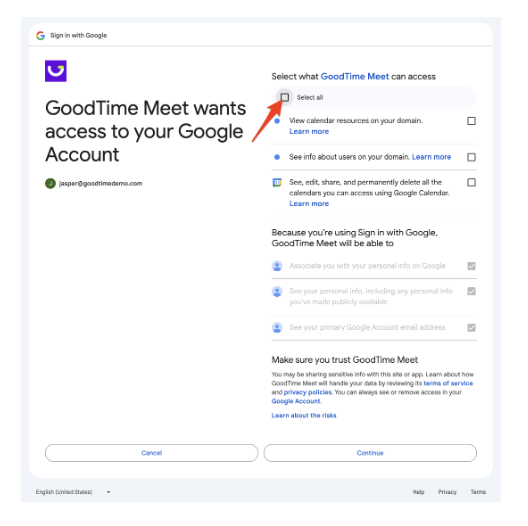
Please note, if you are still missing the permissions after you log in, you can always click on the Calendar Icon on the left and click on the “Connect Calendar” button to go through the connection workflow above.
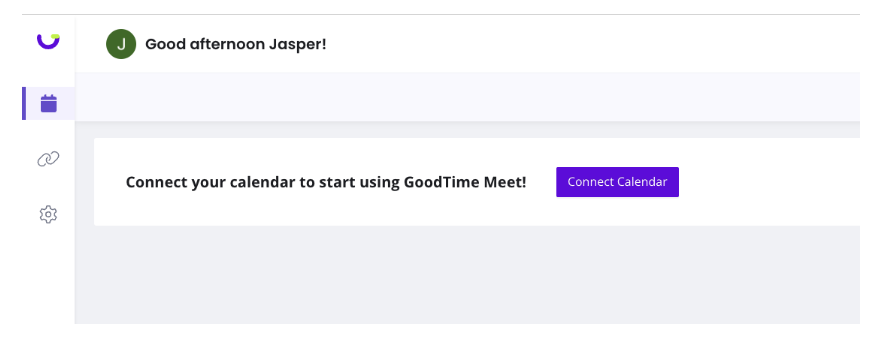
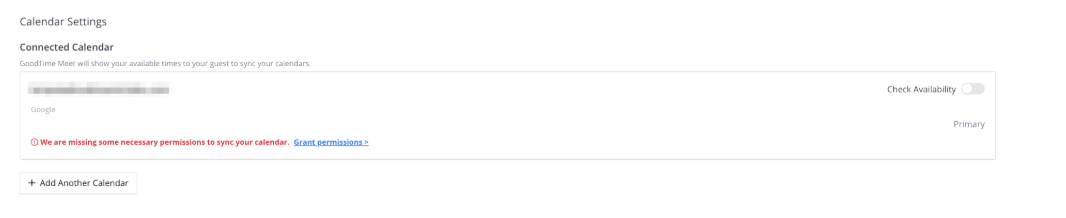
If you don’t see that connect your calendar interface, you can also go to your My Calendars Settings Page to resolve the issue. If we are having a problem connecting your calendars, just click on the blue “Grant Permissions” link next to the error message to add the necessary permissions.
Microsoft Automatic Logout
Microsoft Exchange accounts will occasionally automatically log out third-party integrations whenever a password on the account changes, the organization moves to a different version of Microsoft, or for general security purposes. To fix this issue and re-grant access follow these steps:
Log out of GoodTime Meet by pressing your avatar in the top right hand corner → Logout
Log back into GoodTime Meet at: meet.goodtime.io/login
Test out a scheduling link to see if this has resolved the issue
Blocking Calendar Events
Sometimes all day events or long meetings can block large portions of your availability. If this is the case, there are a few ways to resolve this problem.
Decline All Day Events
Go to your calendar and decline all day events that are blocking your availability. Optionally you can remove yourself as an attendee.
Mark Blocking Events as Free
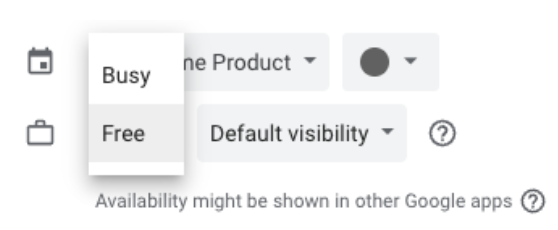
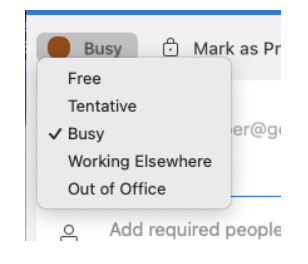
Click into the event that is blocking your availability to edit the details. Mark the event as “free” to allow GoodTime to book over this event.
In Google Calendar, events have a drop down (next to the suite case icon) where you can set the event as “Free” or “Busy.”
In Office365 and Outlook, events click on the “Busy” option next to the “Mark as Private” toggle and select “Free”
After unblocking some events, go back to one of your scheduling links and verify that some time slots have opened up.
Fully Booked Calendars
When your calendar is fully booked or mostly booked during business hours, availability shared with a guest will be limited. Follow the instructions above for Blocking Calendar Events to unblock some times that you want to meet with guests.
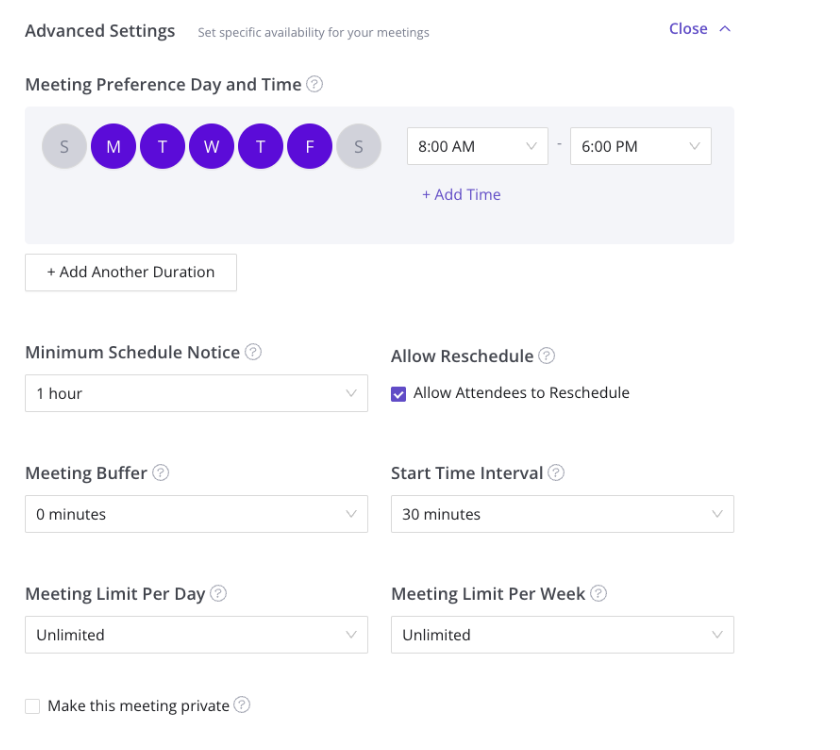
Advanced Setting Conflicts
Advanced settings can be powerful but also can reduce the amount of availability shared with your guests. Outlined below are the most common types of issues related to advanced settings.
Meeting Buffers
Setting meetings buffers allows you to make sure there is ample time to prepare and decompress after a meeting. Adding Meeting buffers will only share times to guests that have the set buffer period of time before and after the meeting. We recommend starting with Meeting Buffers set to 0 and experiment depending on your calendar availability to see how it changes your availability.
Example Meeting Buffer Issue: