Account Setup
Last updated: February 26, 2026
If you login using your company email address, you will have access to modify the settings for all users inside the organization. If you login using a personal email account (@gmail, etc.), your account settings will only impact your individual account.
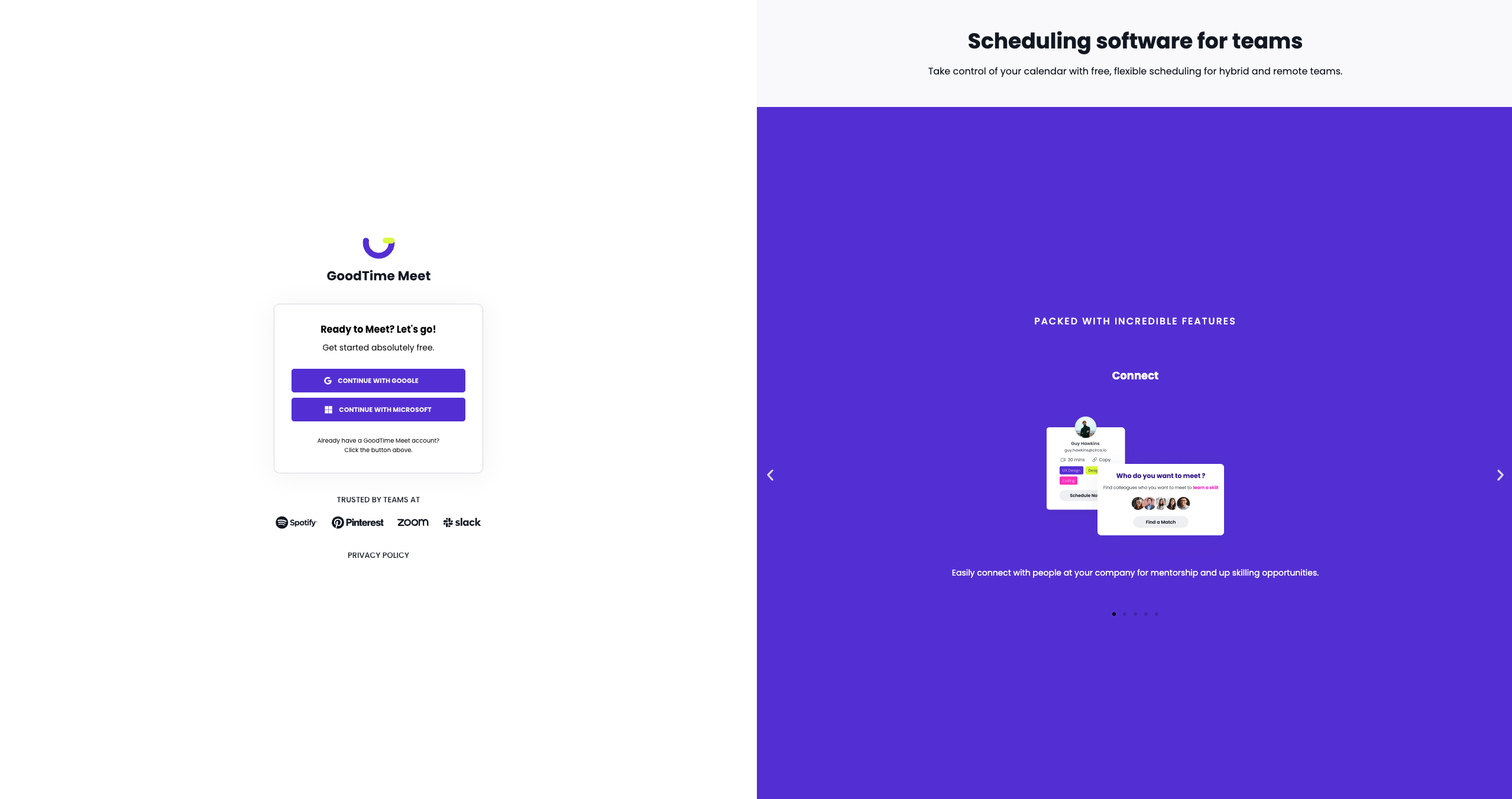
There are two types of accounts you can set-up and use GoodTime Meet for:
- Business Accounts. Signing up and connecting your work email address to GoodTime Meet allows you to access much more powerful features like creating group meetings. We highly recommend you signing up and connecting your work calendar + email to provide guests the most accurate availability and to utilize all the features of GoodTime Meet.
- Personal Accounts. Work and life a lot more intertwined these days. Never book a meeting accidentally over your doctors appointment, your kid’s recital, or your mediation time. You can connect your personal calendars to your Business Account and consider your personal schedule when sharing your work availability to others.
NOTE: Automatic Integration with Google By logging in using your Google email address (personal or work), GoodTime Meet and your Calendar are automatically integrated. Google Meet is automatically connected as well if that is your preferred Video Conferencing Service provider.
Business Accounts Utilizing Microsoft If you need to review the permissions required for connecting to meet, please reference this Microsoft Office 365 Integration Guide
Creating Your Profile
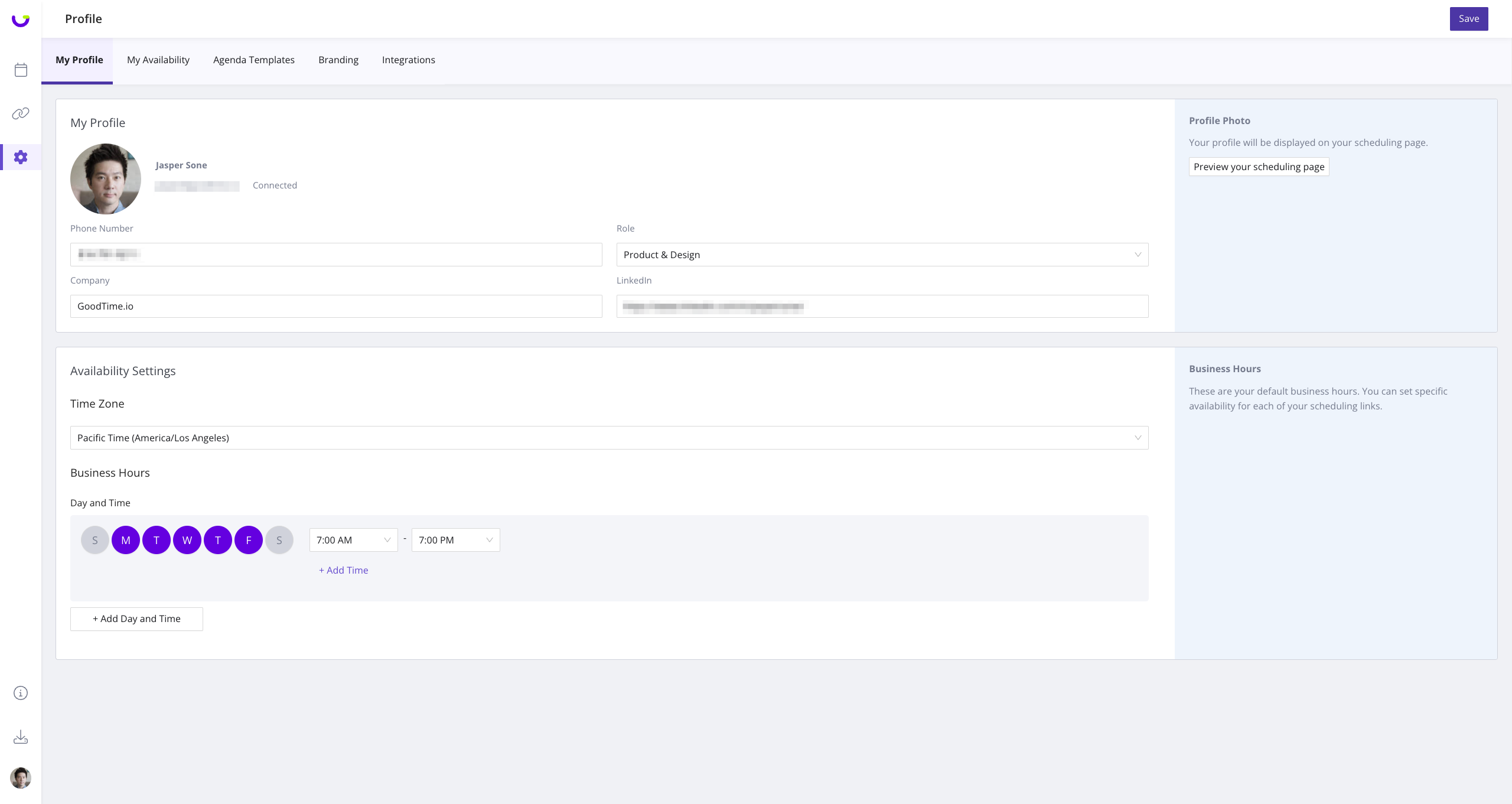
Your profile page is important as it contains information such as your role, LinkedIn, profile picture, and more that your guests will be able to see to learn more about you.
GoodTime Meet automatically includes your profile picture that is connected to your email address. This profile picture is important as this will be front-and-center for your guests to see who they are meeting with. You can change your profile logo if it is not accurate by going to the Gear Icon (Settings) > My Profile Tab in the left hand side:
Adjusting your Business Hours
Your Business Hours (default availability) is what shows when you create a new scheduling link. Please make sure your time zone is accurate as this will be used across all your scheduling links to dictate start and end times
Note: Adjusting your default availability does not change the availability that is set for each individual scheduling link once they have been created
Customize Branding for your Scheduling Page
GoodTime Meet also automatically include your company logo (if you signed in using your work email address). You can change your company logo if it is not accurate by going to the Gear Icon (Settings) > Branding Tab in the left hand side:
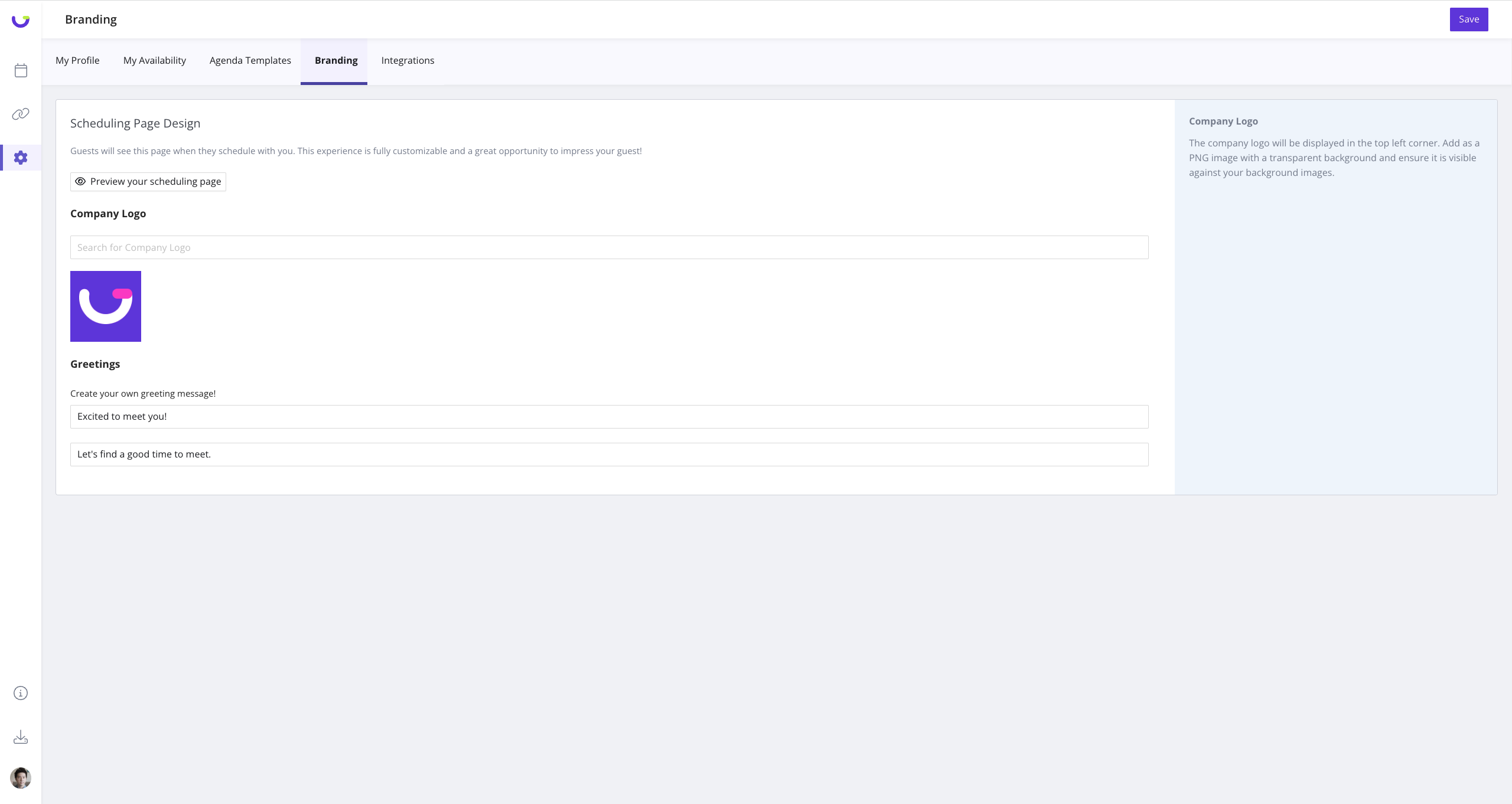
You can also customize the greeting your guests see when they open one of your scheduling links. Make sure preview your changes after saving by clicking the Preview your Scheduling Page button to confirm everything looks good.
Once you have set-up your profile and branding, you are ready to start scheduling! If you need to add integrations such as Zoom, you can learn how to integrate Zoom into your meeting scheduling by checking out our Integrations Page.