Chrome Extension
Last updated: February 26, 2026
GoodTime Meet's Chrome Extension allows you to share scheduling links via email and from your browser.
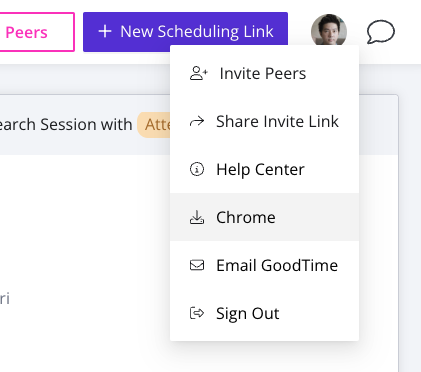
You can download the GoodTime Meet Chrome Extension from the Google App store using the link here. You can always jump to our downloads page using the quick download icon in the navigation found inside of your Avatar icon in the top right hand corner of the page.
How to use the GoodTime Chrome Extension
Once you add the GoodTime Meet Chrome extension, click the puzzle icon in the top right hand corner of Google Chrome to see all of your chrome extensions. Click the 'pin' icon next to GoodTime Meet:

You should see the G GoodTime logo inThis allows you to access the GoodTime Meet Chrome Extension quickly inside your chrome browser:

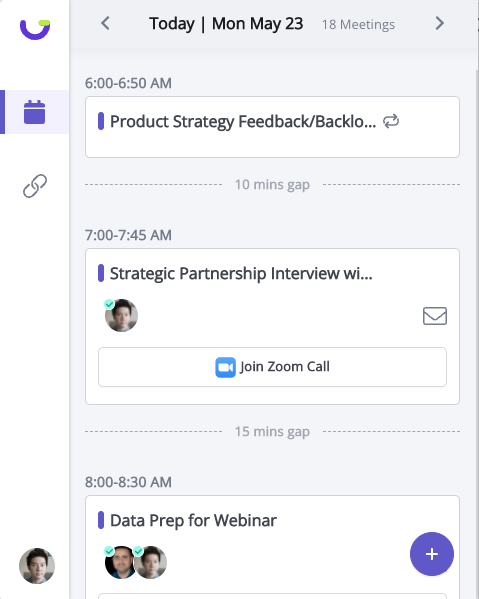
By clicking the G GoodTime Logo, this will allow you to quickly access your upcoming meetings as well as scheduling links:
-
Upcoming Meetings
- Never be late again by clicking to quickly join meetings or message teammates who are on the same calendar invite.
-
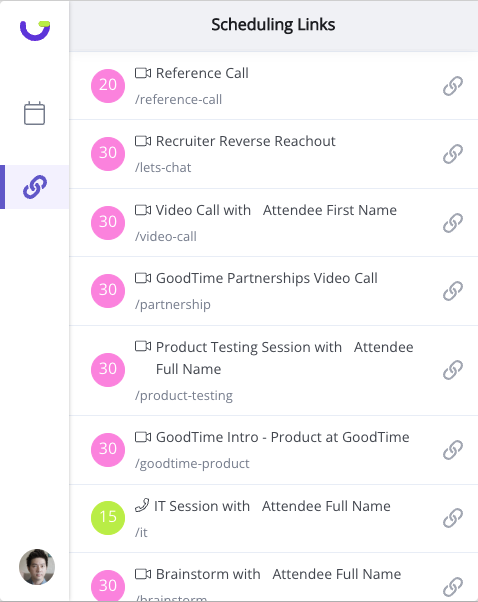
Scheduling Links
- Clicking on the 'link' button allows you to quickly copy your scheduling link so you can paste it to whoever you want to meet with.
GoodTime Meet Chrome Extension with Gmail
If you use Gmail and have the Chrome Extension turned on, you will see the GoodTime G when you compose a new email or respond to a thread:
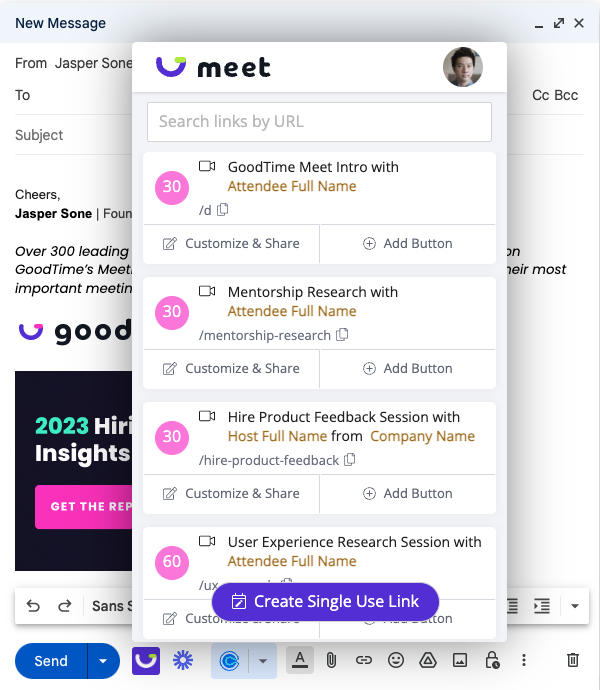
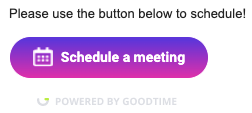
Click on the short link inside of the card (i.e. “/30-min-video”) link to copy the scheduling link to the clipboard (you can paste it anywhere afterwards). You can also click the “Add Button” to create a button inside of your email for people to quickly schedule (easy to see):
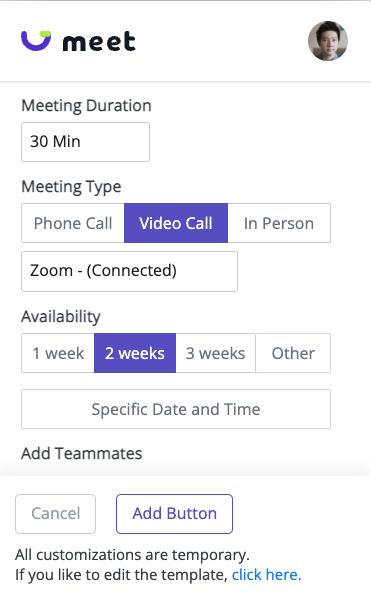
If you want to customize and share a single use link, then press the “Customize and Share” button and you’ll be able to modify some of the link properties like:
- Meeting duration
- Meeting type
- Availability window
- Attendees
- Required details to book (questions)